Win10/Win11优化

Win10/Win11优化
Zack一、修改登錄檔(regedit)
Win Key + R
输入regedit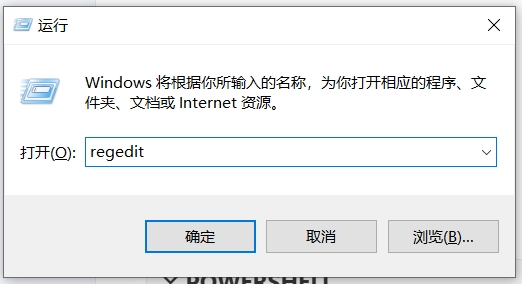
HKEY_LOCAL_MACHINE\SYSTEM\CurrentControlSet\Control\Session Manager\Memory Management
DisablePagingExecutive=1
LargSystemCache=1
也可以直接下载reg档直接汇入即可
MEGA下载连结
二、Powershell
用右键管理员权限 打開Powershell
1 | mmagent |
MaxOperationAPIFiles 8192
卓越性能模式開啟
1 | powercfg -duplicatescheme e9a42b02-d5df-448d-aa00-03f14749eb61 |
停用相关服务
1 | Stop-Service -Name "WSearch" |
三、提高游戲FPS
在游戲圖標上按右鍵–>內容–>停用全螢幕最佳化打勾
四、Chrome設定
- 設定–>系統–>關閉Google Chrome后繼續運行后台應用–>禁用
- 設定–>效能–>節能模式–>禁用
- 設定–>效能–>預先載入網頁–>禁用
五、設定高速DNS
- 國外:
8.8.8.8
8.8.4.4
1.1.1.1
1.0.0.1 - 國內:
114.114.114.114
114.114.115.115
223.5.5.5
223.6.6.6
六、設定網卡屬性
如電源最大之類的
七、調整群組原則
計算機–>管理模板–>網路–>Qos數據包計畫程序–>限制可保留帶寬–>啟用–>0%
計算機–>Windows設置–>基於策略的Qos–>指定入站TCP吞吐量級別–>
4G=級別1
8G=級別2
16G以上=級別3